My Tickets — finding your orders
See all your ShowTix tickets at /my-tickets — signed in, or as a guest with a code emailed to the address you bought with.
For customersLast updated
On this page
Go to My Tickets at /my-tickets. If you're signed in, your orders show straight away. If not, enter the email you used at checkout and we'll send you a 6-digit code to see every order placed with it — no account needed.
As a guest (no account)#
Enter your email
On /my-tickets, type the email you used at checkout into Email address and select Email me a code.
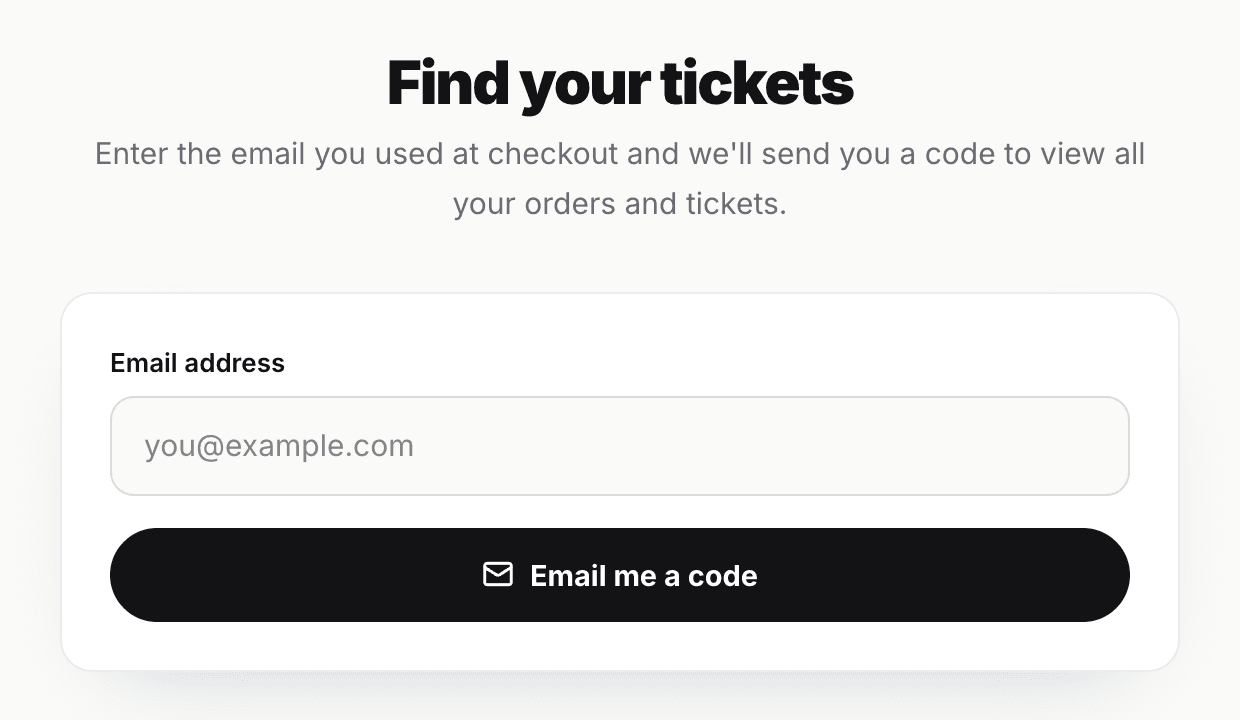
My Tickets when you're not signed in — enter the email you used at checkout. Check your inbox
We email a 6-digit code. The subject is "Your ShowTix code: 123456". The code expires after 10 minutes.
Enter the code
Type it into Verification code and select View my tickets.
You'll see every order placed with that email. The lookup lasts until you close the browser tab. Select Not you? Sign out to clear it, or Use a different email on the code step to start again.
If you enter the wrong code five times, it stops working — request a new one. If we say "We couldn't find any tickets for this email", try any other address you might have used.
Signed in#
If you have a ShowTix account, sign in and open My Tickets (or select Your tickets on your account home). You'll see every order placed with your account's email address — including orders you made as a guest before you created the account.
Confirm your email first
Orders only appear for a confirmed email address. Signing in with an emailed code confirms it. If you see "Confirm your email address to see orders placed with it", sign out and sign back in with a code — see Signing in.
Bought with a different email? Select Used a different email? to look it up with a code.
What you'll see#
Each order card shows the event, date, time and venue, and each ticket with its seat (for seated events) and status:
| Status | Meaning |
|---|---|
| Valid | Ready to use at the door |
| Checked in | Already scanned at the event |
| Refunded | Refunded — no longer valid for entry |
Select View full order to open the order page.
The order page#
The order page (the View your tickets link in your confirmation email) has everything for that order:
your receipt figures and Order reference (with a Copy button)
each ticket's QR code — select a ticket thumbnail to switch between them
Save All (PDF of every ticket) and Print
Add to Wallet for Apple Wallet, one ticket at a time
Transfer / Gift to send a ticket to someone else
Request a refund, when the order can be refunded
See Ticket PDF and Apple Wallet, Transferring tickets and Refunds.
Keep your links private
Anyone with your order link or a ticket link can open the tickets and their QR codes. Don't post them publicly.
Didn't get your tickets email?#
Check spam, junk and promotions folders for an email from ShowTix.
Look up your order on /my-tickets with a code — it works even if the confirmation went missing.
Still nothing? The email entered at checkout may have had a typo — contact support with the event name, your name and the time you bought.
Was this article helpful?