Signing in
Sign in to ShowTix with a 6-digit code or one-click link sent to your email — no password needed. What to do if the code doesn't arrive or stops working.
For everyoneLast updated
On this page
ShowTix signs you in with your email — no password to remember. Enter your email at /login, and we'll send you a 6-digit code and a one-click sign-in link. Use either one.
Sign in with a code#
Enter your email
Go to /login (or select Sign In at the top of any page), type your Email and select Email me a code.
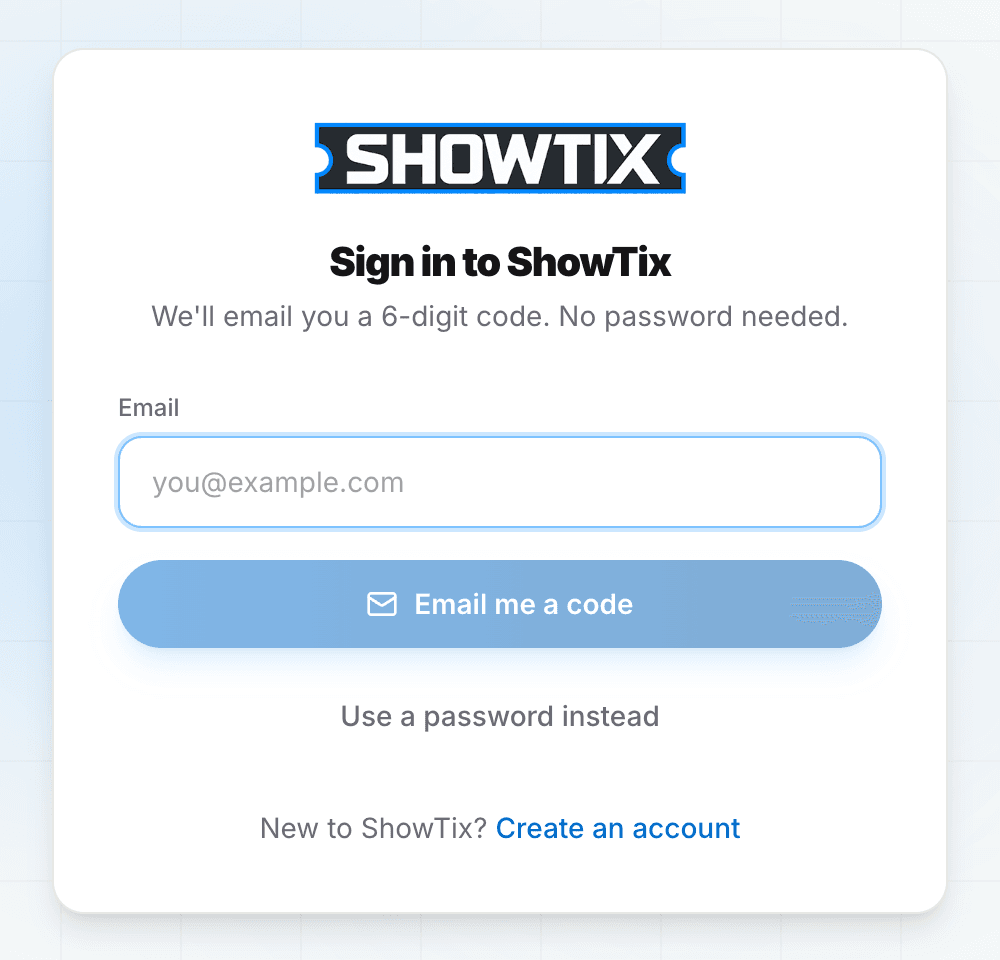
Email code is the default; the password option sits underneath. Check your inbox
You'll get an email titled "Your ShowTix sign-in code: 123456". The code is in the subject line and the email.
Enter the code
Type the 6 digits into the boxes. You're signed in as soon as the last digit goes in.
The code expires after 10 minutes and works once. Entered the wrong address? Select Wrong email? to go back.
Sign in with one click#
The same email has a one-click sign-in link ("Or sign in with one click"). Open it and you'll see Signing you in…, then you're in. You can open the link on the device you want to be signed in on — it doesn't have to be the one where you asked for the code.
Using the code or the link uses up both. If the link says That link didn't work ("This link has already been used, or a newer code was sent"), select Get a new sign-in code.
Where you land#
After signing in you go to your account home. Customers see Your tickets and Find a show; hosts see their dashboard. If you were sent to sign in from another page, you go back to that page.
To sign out, open the account menu at the top right and select Sign out.
Signing in with a password#
Some older accounts have a password. While older versions of the ShowTix mobile apps are still in use, you can sign in with it: on /login, select Use a password instead, enter your email and password, and select Sign in. Select Back to email code to switch back.
The email code is the main way to sign in, and password sign-in will be switched off in future. There's no password reset — if you've forgotten it, use an email code instead. Accounts created with a code don't have a password at all.
If the code doesn't arrive#
Wait a minute and check spam, junk and promotions folders.
Make sure you typed the email you signed up with. We only send a code to addresses that have an account — if you've never created one, create an account instead. (You can still find tickets bought as a guest at My Tickets.)
Request another: Resend code becomes available after 30 seconds. Sending a new code cancels the old one — "New code sent. Older codes no longer work."
Error messages#
| Message | What to do |
|---|---|
| "That code isn't right. 3 tries left." | Check you're using the newest email and try again. |
| "Too many incorrect tries, so that code no longer works." | After 5 wrong tries the code is cancelled. Select Send a new code. |
| "That code has expired." | Codes last 10 minutes. Send a new one. |
| "Too many attempts. Try again in 12 min." | You've asked for too many codes in a short time (5 per email in 15 minutes). Wait, then try again. |
| "Email or password is incorrect." | Password sign-in only — check both, or use an email code. |
Didn't ask for a code?
You can safely ignore the email — nobody can sign in without the code. If it keeps happening, contact support.
Can't get into your email any more?#
If you've lost access to the inbox on your account, you can't receive sign-in codes. Contact support from another address with your name and the old email, and we'll help. If you can still sign in, change your email first — see Changing your email.
Was this article helpful?