Checkout and payment
How ShowTix checkout works — your details, promo codes, the 15-minute hold, paying by card or PayPal, free orders, and what to do if payment fails.
For customersLast updated
On this page
You can pay by card (on Stripe's secure payment page) or with PayPal. You don't need an account — just your name and email. Prices already include the booking fee and GST, so the total you see is the total you pay.
Step by step#
Choose your tickets
On the event page, pick ticket quantities or seats, then select Checkout. You'll land on Secure Checkout.
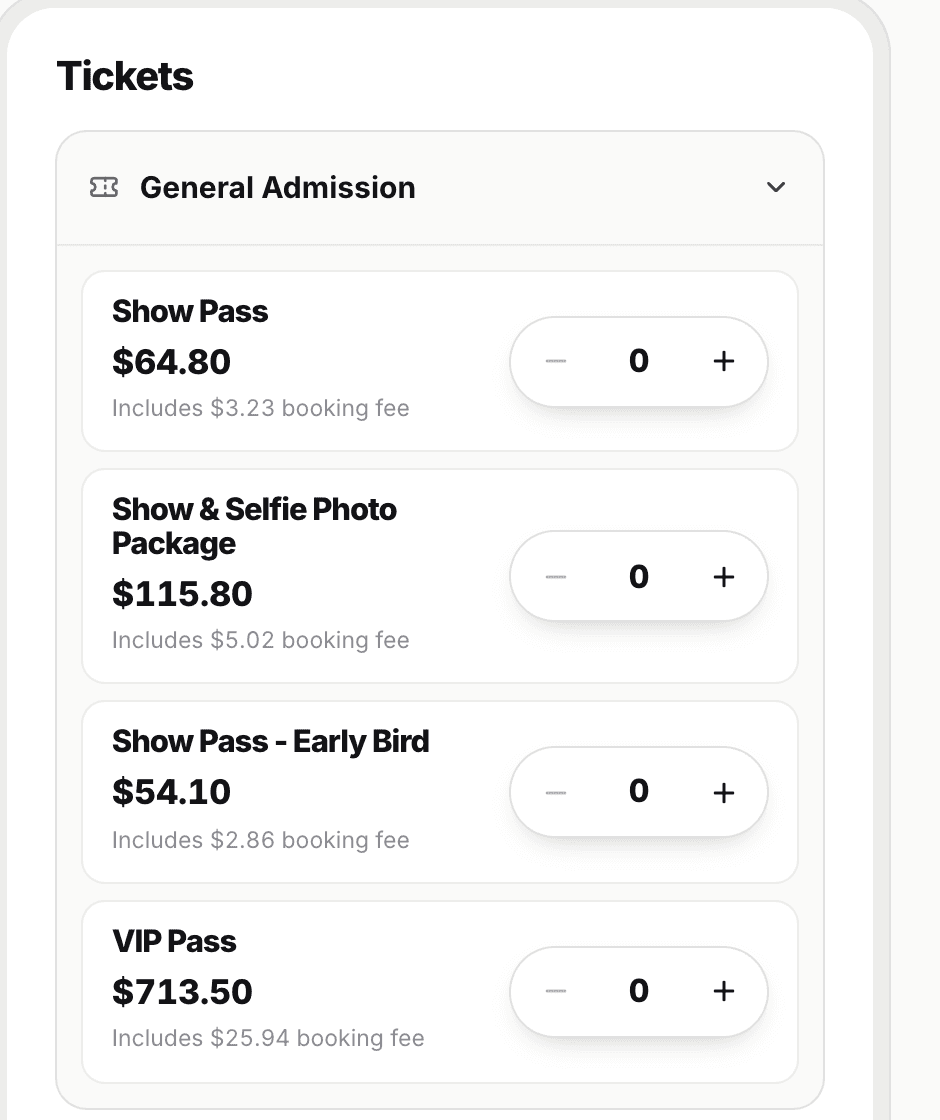
Prices on the event page are the total you pay — the booking fee is already included. Enter your details
Under Your details, fill in First name, Last name and Email. Phone number (optional) is used for event-day updates. Your tickets and receipt are sent to this email, so double-check it. Select Continue to payment.
Add a promo code (optional)
If you have one, type it into the Promo code box and select Apply. See Promo codes.
Agree and pay
Tick I agree to the Terms & Conditions, then select Pay $x with card or Pay with PayPal. You'll be taken to Stripe or PayPal to finish paying, then brought back to your order page.
Once payment is confirmed you'll see Order confirmed with your tickets, and an email with your tickets attached as a PDF. See My Tickets.
Payment methods#
| Method | How it works |
|---|---|
| Card | Pay $x with card takes you to Stripe's hosted payment page, where you enter your card details. ShowTix never sees your full card number. |
| PayPal | Pay with PayPal takes you to PayPal to approve the payment. |
All prices are in Australian dollars (AUD).
Apple Pay and Google Pay
The website checkout doesn't have separate Apple Pay or Google Pay buttons — use Pay $x with card or Pay with PayPal.
What's in the total#
The Order Summary lists each ticket line and seat, then:
Subtotal — the ticket prices
your promo code and discount, if you used one
Booking fee (incl.) and GST (incl.) — already part of the prices, shown so you can see them
Total — what you'll be charged
"Already included in your total — no surprises at the end." Some events also have add-on options (such as sizes or variants) you can adjust in the summary with + and −.
Free tickets#
If your order totals $0, you'll see "This order is free — no payment needed." Enter your details and select Get my tickets. There's no payment step.
The checkout timer#
Your tickets are held while you check out. A timer at the top of the page shows the time left — about 15 minutes. Other customers can't buy the tickets you're holding during that time.
If your cart expires#
When the timer runs out you'll see Your cart has expired. You have not been charged. Select Back to event and choose again — the same tickets may still be available.
If you entered your email before the hold ran out, we may email you a Resume checkout link so you can pick up where you left off, as long as the tickets are still available. Tickets aren't held again, so it's first come, first served. The email link fills in your restore code automatically; you can also paste a code into Have a cart restore code? on the expired-cart page.
If payment doesn't go through#
You cancelled or the card was declined — the order page says "Our payment provider hasn't received a payment for this order, so you have not been charged." Your tickets stay held for a few minutes; select Back to checkout to try again.
The page says "Still confirming your payment" — don't pay again. If you completed payment, we'll email your tickets as soon as it's confirmed. The page keeps checking by itself.
"Payment received — finalising your tickets" — your payment went through and your tickets are on their way.
Don't pay twice
If you're unsure whether a payment worked, check your email and My Tickets before trying again. If you think you've been charged twice, contact support with your order reference.
Common checkout messages#
| Message | What to do |
|---|---|
| "Enter your email so we can send your tickets" | Add an email address — it's required. |
| "Please accept the Terms & Conditions before proceeding to payment." | Tick the terms box. |
| "Some tickets are no longer available. Please review your selection." | Someone bought them first. Adjust your selection on the event page. |
| Cart not found | The cart was already completed or doesn't exist. Check your email for tickets, or start again from the event. |
Was this article helpful?