Create an event
Step-by-step — details, location, tickets, then review and publish. Works whether or not you're signed in.
For hostsLast updated
On this page
Go to /events/new. The event builder has four steps — details, location, tickets, then review & publish — and saves as you go. The bars at the top show how far through you are.
If you're not signed in, you can build the whole event first and confirm your email at the end. See Becoming a host.
Details
Heading: Let's set up your event. Fill in:
Event name — for example "Midsummer Cabaret — Opening Night"
Public description — what customers see on your event page
Starts and Ends — the end time defaults to one hour after the start
Doors open (optional) — for example "7:30pm"
Feature image — required; PNG or JPG up to 8 MB
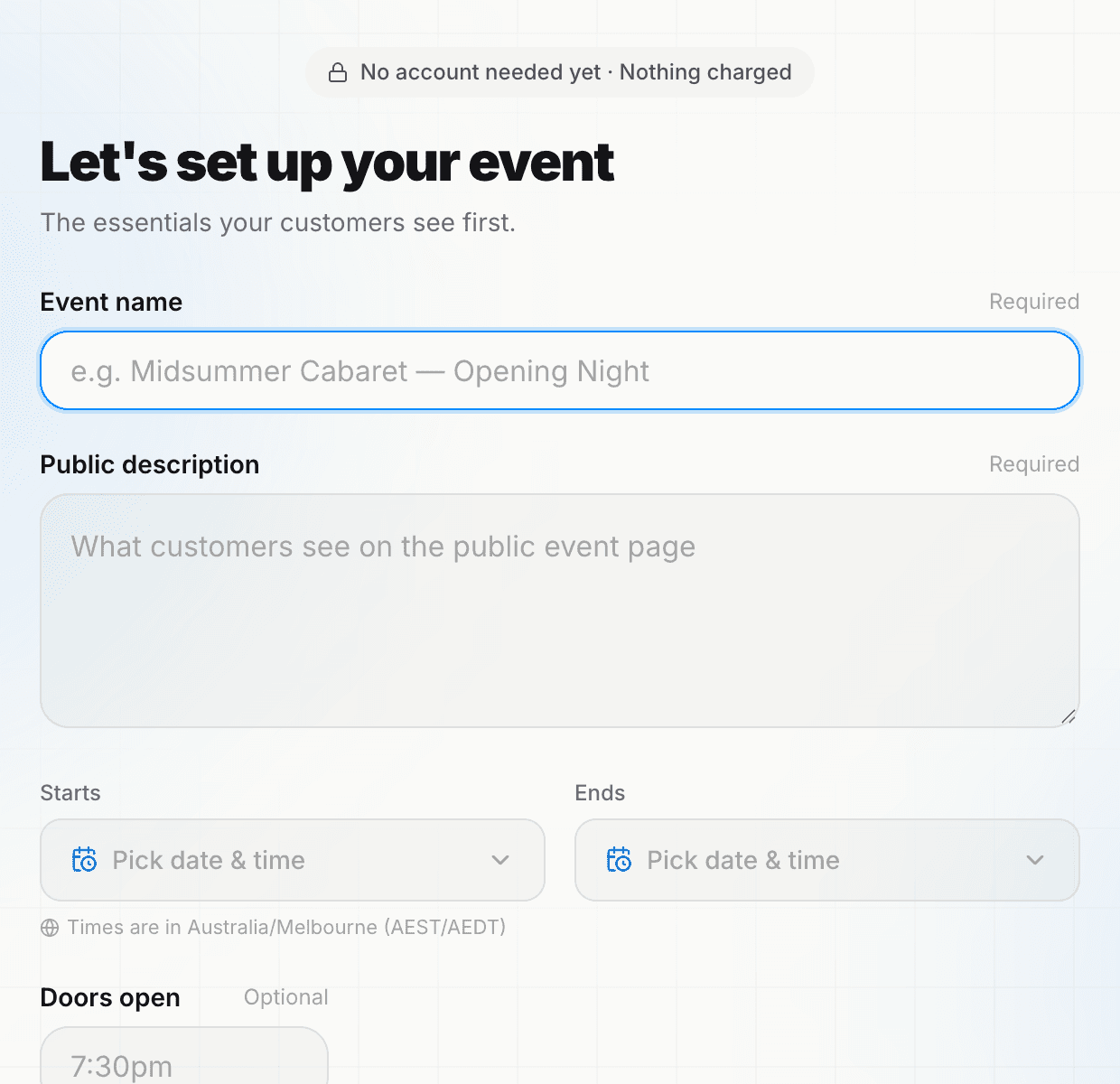
Step one of the builder at /events/new — no account needed yet. Click Continue to location.
Location
Heading: Where's the show? Search for the venue or address, then drag the pin to the exact spot. If the venue is already on ShowTix, pick it from the suggestions; otherwise name it as a new venue. See Venues.
Click Continue to tickets.
Tickets
Heading: Set up tickets. Add a ticket type for each price — see Ticket types and pricing.
Click Continue to review.
Review & publish
Heading: Review & publish — One last look before it goes live. Check everything, then publish.
Images#
Not signed in: upload a new image (drag and drop or browse).
Signed in: you can also click Choose from your image library to reuse an image you've uploaded before.
Building before you sign in#
The four steps are a little simpler before you have an account:
Tickets — each ticket type has a Name, Price (customer pays) and Quantity. Use + Add another ticket type for more prices. Under each price you'll see what you receive after the booking fee. Paid tickets must be more than $1.
Review & publish — shows how your price splits (Your customer pays $X. You take home $Y.). Use Preview your event page to see exactly how customers will see it, with a Desktop / Mobile toggle.
Click Save & publish. Two short screens follow (Almost live — 1 of 2):
Confirm it's you — enter the 6-digit code we email you. If we don't have your email yet, enter a Contact email and click Send code →. Then click Verify & continue.
A couple of details, then you're live — enter:
Presented by — the public credit on your event page, such as your name, venue or company
What kind of presenter? — Organiser, Promoter, Venue, Act / artist, Production company, Community group or Other
Contact phone (optional)
your Account name, BSB and Account number for payouts
optionally, a password
Click Publish "your event".
Your draft saves automatically. You'll see Saving… and Saved, and you can leave and finish it later on the same browser.
If this is your first paid event, the confirmation screen says Submitted. — it gets a quick check before tickets go on sale, and we email you once it's approved. Otherwise it says You're live. Your event's Overview always shows the current status. See Publishing and approval.
Building while signed in#
Location — search Match an existing venue (this includes venues you've created), or name a New venue from this pin and click Create. You'll see Venue set when it's done.
Tickets — uses the full ticket editor with pools and ticket types (Pools cap availability; ticket types set pricing within a pool.). Add a pool and at least one ticket type to continue.
Review & publish:
Choose a Settlement bank account — the account your ticket money goes to. If you have none yet, add one in Financials first (see Payouts).
Optionally set Tickets on sale from.
Click Publish event. Publishing checks every ticket type, makes the event public and creates its payout schedule.
Your draft event is created after the details step. If you leave, open the event and click Publish event to pick up at the first unfinished step.
The signed-in builder doesn't ask for Presented by and has no Desktop / Mobile preview. Add presenters later under Settings → Presented by, and use View on the review step to open the event page.
After you create it#
Your event has its own console at Events → your event. Use the tabs: Overview, Tickets, Seating, Coupons, Promoters, Guest list, Waitlist, Check-ins, Reporting, Refunds, Messenger, Announce, Payments and Settings.
Editing details later#
Go to Settings to change the Event name, Public description, Doors open, Capacity, images and Presented by credits. Changes save as you go, including after the event is live.
Settings doesn't have date or venue fields yet. To change these on an unpublished event:
Click Publish event on the Overview to reopen the builder.
Use ← Back to reach the details or location step.
For a live event, contact support@showtix.com.au to change the date or venue.
Was this article helpful?